How to Install MovieBox Pro on Roku TV: Every Method That Works
You can install Movie Box Pro on Roku TV using developer mode or watch it through screen mirroring from your Android phone. Developer mode installs it directly on the Roku device. Screen mirroring works in under 3 minutes with no technical setup. Roku does not support APK sideloading directly so these are the two methods every Roku user uses.
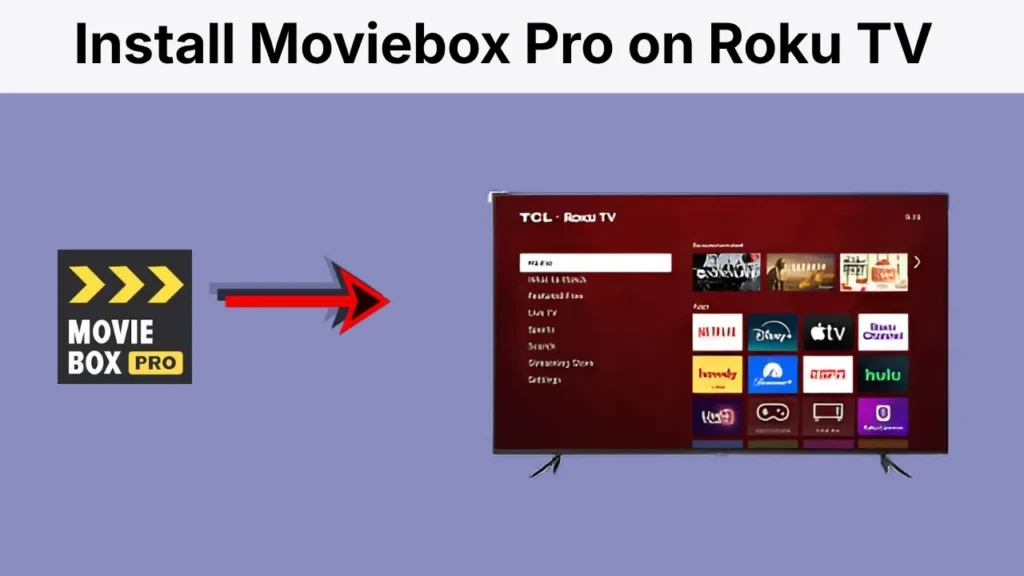
Step 1: Enable Screen Mirroring on Roku
- Press the Home button on your Roku remote.
- Go to Settings, System, Screen Mirroring.
- Select Screen Mirroring Mode and choose Always Allow or Prompt.
Step 2: Install MovieBox on Android
- Download MovieBox APK on your Android phone from our MovieBox download page.
- Install and open the app.
Step 3: Mirror to Roku
- On your Android phone swipe down to open the notification panel.
- Tap Cast, Smart View or Screen Mirror depending on your phone brand.
- Select your Roku TV from the available devices list.
- Your phone screen appears on the Roku TV immediately.
- Open MovieBox on your phone and play any title.
- Video streams on your Roku TV screen.
Note: Both your phone and Roku must be connected to the same WiFi network for mirroring to work.
iPhone mirroring to Roku requires a third party app because Apple AirPlay only works natively with Apple TV, not Roku. Use the Mirror for Roku app available on the App Store.
- Download Mirror for Roku from the App Store on your iPhone.
- Open the app and select your Roku TV from the list.
- Install MovieBox IPA on your iPhone using AltStore or Feather. Full steps at our MovieBox iOS guide.
- Open MovieBox on iPhone and start playing.
- The content mirrors to your Roku screen through the Mirror for Roku app.
Alternatively connect your iPhone to your TV using a Lightning to HDMI adapter for a direct wired connection with better quality than wireless mirroring.
How to Install Movie Box Pro on Roku TV Using Developer Mode
iTo install MovieBox Pro apk directly on Roku TV enable developer mode, download the ZIP file from movieboxpro.app and upload it through the Roku web installer.
Enable Developer Mode on Roku:
- Press Home 3 times on your Roku remote.
- Press Up 2 times.
- Press Right, Left, Right, Left, Right.
- Developer mode screen appears with an IP address.
- Note the IP address and create a developer password when prompted.
Download the ZIP File:
- On your phone or PC go to movieboxpro.app.
- Download the Roku channel ZIP file from the official page.
- Save it to your PC.
Upload and Install:
- Open a browser on your PC.
- Type the IP address shown on your Roku screen into the browser address bar.
- Log in with the developer password you created.
- Go to Upload Channel.
- Select the Movie Box Pro ZIP file and upload it.
- MovieBox Pro installs and appears in your Roku channel list within seconds.
This method gives you MovieBox Pro running permanently on Roku without needing your phone open during streaming.
Which Roku Devices Support MovieBox?
Screen mirroring works on all Roku TV models and Roku streaming sticks that support the screen mirroring feature. Developer mode works on all Roku devices.
| Device | Screen Mirroring | Developer Mode |
| Roku Express | Yes | Yes |
| Roku Streaming Stick | Yes | Yes |
| Roku Ultra | Yes | Yes |
| Roku TV (TCL, Hisense) | Yes | Yes |
| Roku 4K Plus | Yes | Yes |
All current Roku devices running Roku OS 9.2 and above support screen mirroring. If your Roku model is very old and does not show the Screen Mirroring option, update the Roku OS from Settings, System, System Update.