
Download MovieBox Apk on PC or Laptop For Free
You can download MovieBox on Windows PC, laptop, or computer in under 5 minutes using BlueStacks, NoxPlayer, the MovieBox EXE app, or straight from your browser.
BlueStacks is the fastest and most reliable option for most people. None of these methods need any technical skill, just follow the steps below.
| Method 1 | BlueStacks emulator (recommended) |
| Method 2 | NoxPlayer emulator |
| Method 3 | MovieBox web version (no download) |
| Device support | PC, laptop, computer, Windows 7, 8, 10, 11 (32 and 64 bit) |
| RAM needed | 2 GB minimum, 4 GB recommended |
| Storage needed | 5 GB free disk space |
| Price | Free |
How to Install MovieBox APK on PC or Laptop Using BlueStacks
Step 1: Download the MovieBox APK using the download button above. Save the APK to a location on your computer that you can easily find later, such as your Downloads folder.
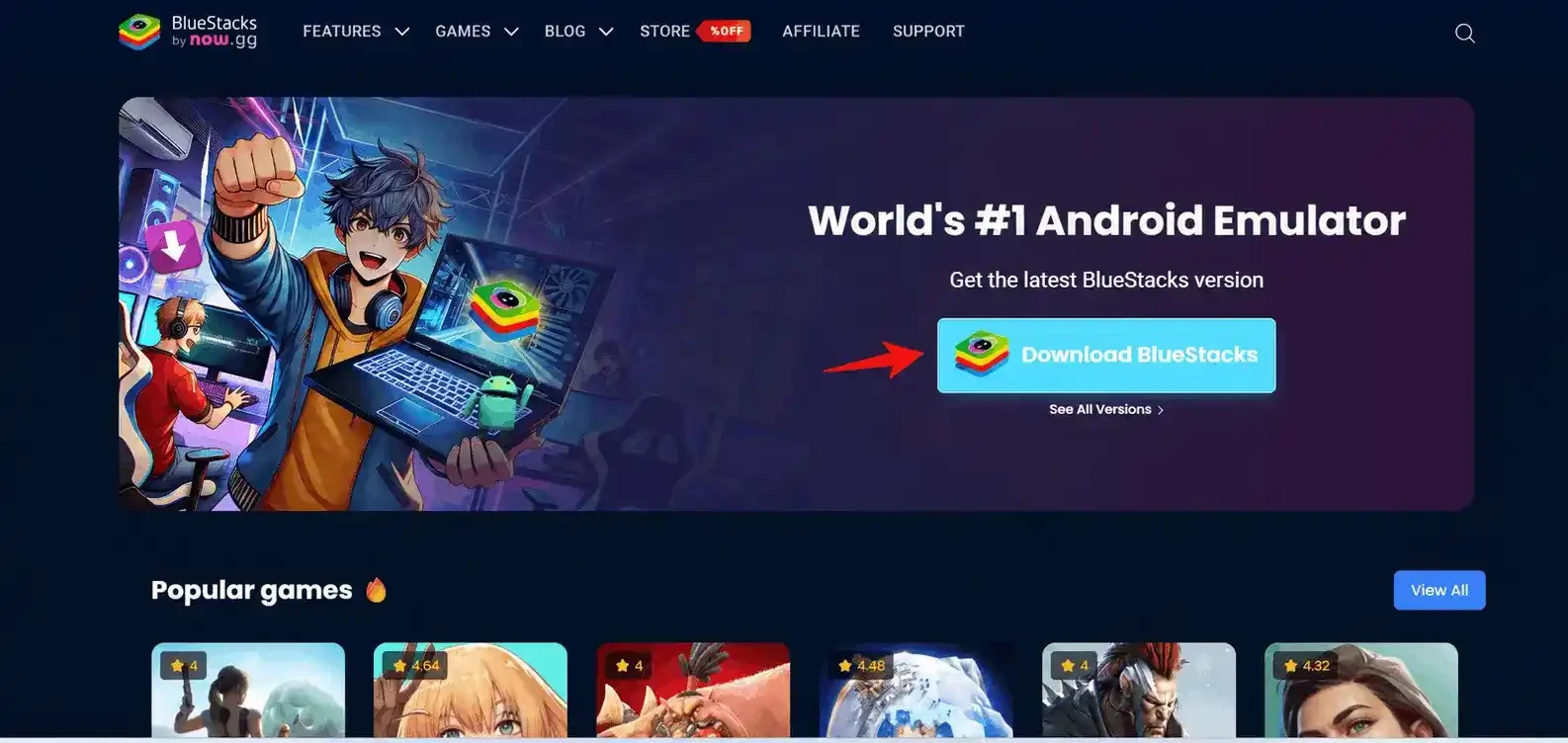
Step 2: Download BlueStacks. Go to the official BlueStacks website and click the blue Download BlueStacks button. The installer will begin downloading automatically.
Step 3: Install BlueStacks. Open the downloaded installer and follow the on-screen instructions, just like you would when installing any other Windows application. The installation usually takes a few minutes.
Step 4: Open BlueStacks. Once the installation is complete, launch BlueStacks.
Step 5: Click the “Install APK” button. On the right-side toolbar, click the Install APK icon. This allows you to select an APK file stored on your computer.
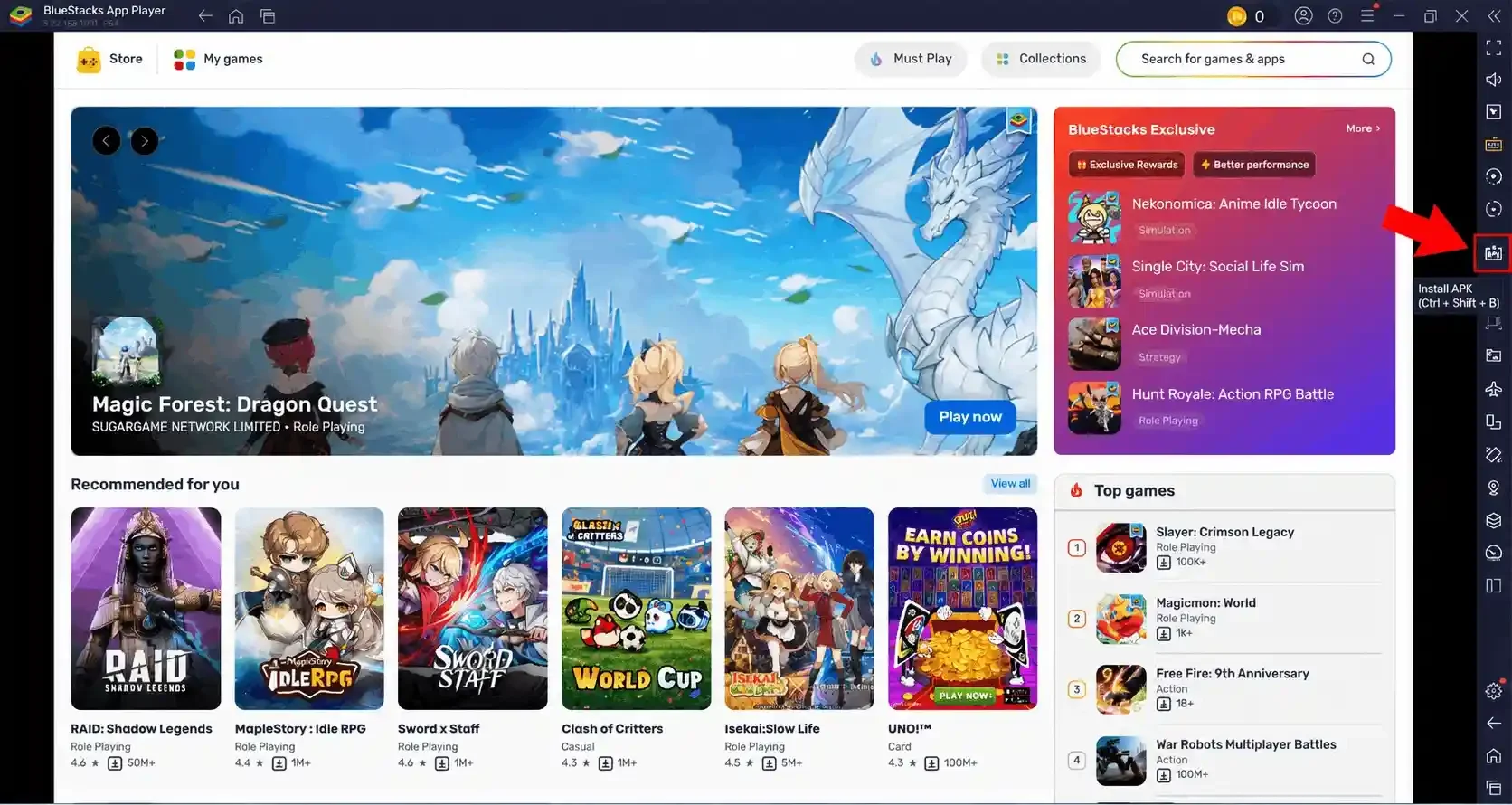
Step 6: Select the MovieBox APK. Browse to the location where you saved the MovieBox APK, select the file, and click Open. BlueStacks will automatically begin installing it.
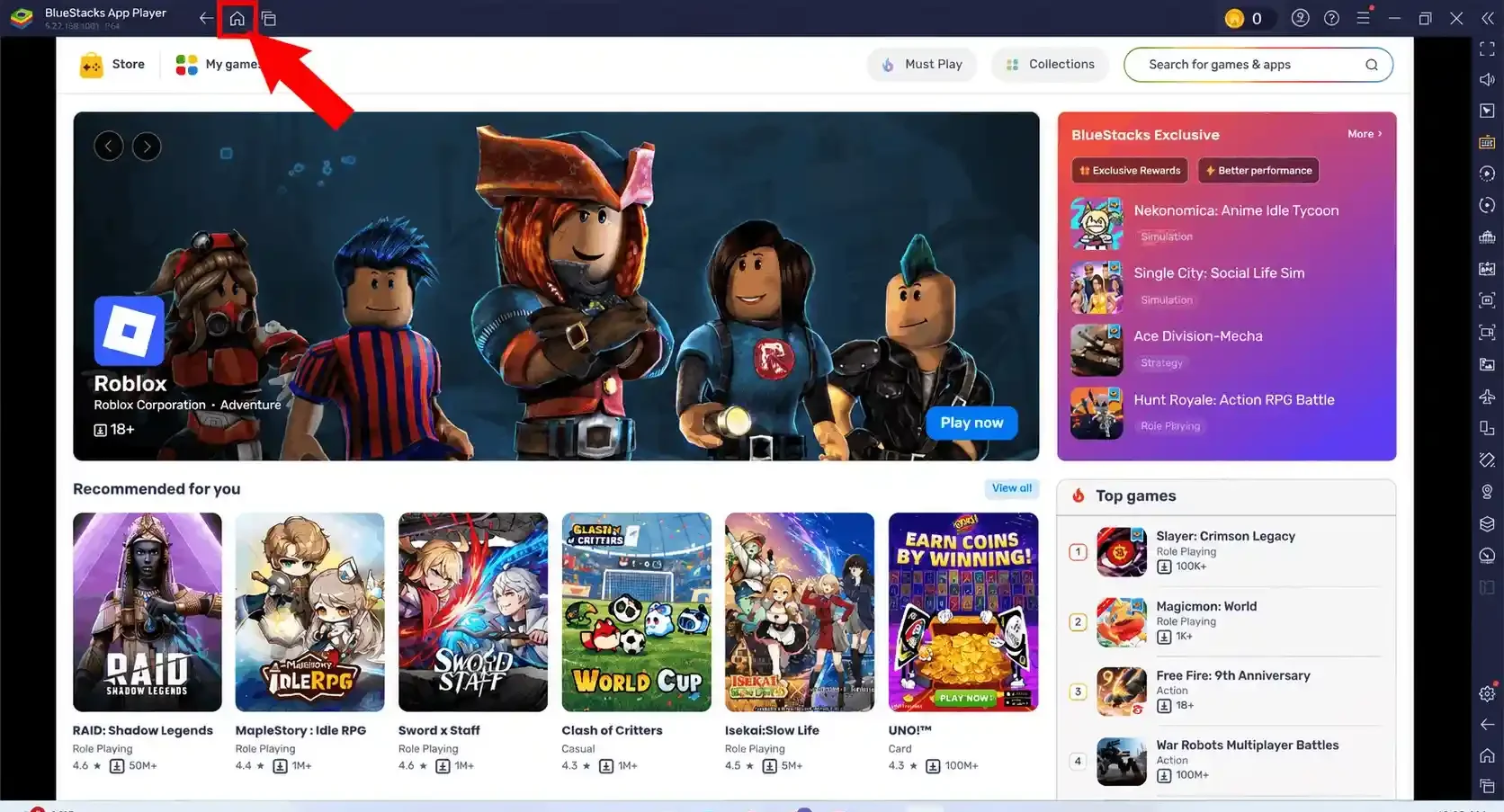
Step 7: Go to the Home tab. If you are not already on the home screen, click the Home icon in the top-left corner of BlueStacks.
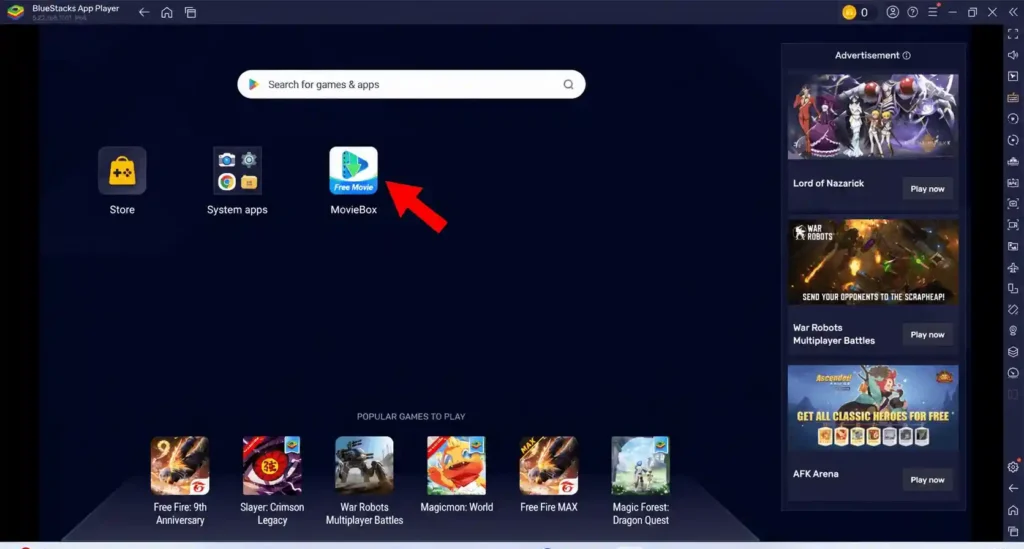
Step 8: You should now see the MovieBox icon on the BlueStacks home screen. Click it to launch the app.
Once MovieBox opens, select any available title and start streaming. I set this up on a Windows 11 laptop with 8 GB RAM and the stream runs in 1080p without any lag.
You can use your mouse to navigate through the app and your keyboard to control supported functions such as volume and full-screen mode. If you want to download the mod version, check out our MovieBox Mod APK page to get the latest modded version.
How to Install MovieBox on Computer or Laptop Using NoxPlayer
ToTo install MovieBox on your Computer or laptop with NoxPlayer, install the emulator, import the MovieBox APK, and launch the app from the home screen.
- Download NoxPlayer from bignox.com and install it.
- Open NoxPlayer and log in with your Google account.
- Drag the MovieBox APK into the NoxPlayer window or search MovieBox in the built-in Play Store.
- Install and open MovieBox from the NoxPlayer home screen.
If you don’t want to use BlueStacks, NoxPlayer is a popular alternative for running MovieBox on Windows. It uses less RAM and often performs better on older PCs and laptops, which matters if your laptop is a few years old.
How to Use MovieBox on PC or Laptop Without BlueStacks
To use MovieBox on your PC or laptop without BlueStacks, download the MovieBox EXE app, install it from the Microsoft Store, use NoxPlayer as an alternative emulator, or access MovieBox directly through your browser.
Three alternatives to BlueStacks:
- Browser access: search for the MovieBox website in Chrome, Edge, or Firefox and stream directly, no emulator needed.
- MovieBox EXE: available from the download button at the top of this page, installed like a regular Windows application.
- Microsoft Store: available on Windows 10 and 11, no emulator required.
- NoxPlayer: works on Windows 7, 8, 10, and 11, and uses fewer system resources than BlueStacks.
Does MovieBox Have a PC or Laptop Version?
Yes. MovieBox is available for PC, laptop, and computer users through the MovieBox EXE application and the Microsoft Store on Windows 10 and 11. If you prefer, you can also run the Android version using BlueStacks or NoxPlayer on any Windows machine.
Unlike mobile devices, MovieBox does not rely on a single desktop version. You can choose between the EXE app, browser version, Microsoft Store version, or Android emulators depending on your setup.
How to Use MovieBox Online on PC Without Downloading Anything
If you do not want to install an emulator, the MovieBox website works directly from any browser on your PC or laptop.
- Open Chrome, Firefox, or Edge on your PC.
- Search for the MovieBox website in the search bar.
- Several MovieBox websites will show up offering direct streaming without downloading the APK.
- Browse and stream directly in the browser, nothing to install.
The web version works on every Windows version without any software needed. You get the same streaming experience as the app, though some newer titles may not open on the web version yet.
Watch Full video how to download Moviebox on pc
MovieBox for PC/Laptop: Windows 7, 8, 10 and 11 Compatibility
MovieBox works on every major Windows version through BlueStacks or NoxPlayer, on both desktop PCs and laptops:
| Windows Version | BlueStacks | NoxPlayer | Web Version |
| Windows 7 | Yes (BlueStacks 5) | Yes | Yes |
| Windows 8 and 8.1 | Yes | Yes | Yes |
| Windows 10 (32 and 64 bit) | Yes | Yes | Yes |
| Windows 11 (64 bit) | Yes | Yes | Yes |
Windows 7 note: BlueStacks 5 supports Windows 7, but performance is smoother on Windows 10 and above. On Windows 7, NoxPlayer is the recommended emulator.
Windows 11 note: Both BlueStacks and NoxPlayer work on Windows 11. Update your graphics drivers before installing to avoid black screen issues.
64-bit requirement: BlueStacks 5 needs a 64-bit Windows system. On a 32-bit Windows 10 laptop, use NoxPlayer instead, which still supports 32-bit.
Is There an Old Version or Pro Version of MovieBox for PC?
Yes, but proceed carefully. MovieBox Pro gives you access to extra streaming servers and fewer ads, but sometimes the latest update doesn’t work well on every device. If that’s the case, an older version might actually be the better choice. Just be careful where you download it from, since a lot of APKs shared on random forums can include unwanted software.
If you need a previous release, take a look at our MovieBox APK Old Versions guide to find a version that still works reliably.
Key Features of MovieBox for PC
Multi-Genre Streaming Hub
MovieBox offers a vast collection of movies, web series, and TV shows from multiple genres, including action, drama, comedy, and documentaries.
HD & 4K Playback
Enjoy crystal-clear HD and 4K playback for an immersive viewing experience on your Windows PC.
Offline Download Mode
Download your favorite titles and watch them offline anytime without needing an internet connection.
Subtitle & Multi-Language Support
MovieBox supports subtitles and multiple languages, making it easy to enjoy global content with clear understanding.
Personalized Watch History
Quickly find movies or shows with advanced search filters and track your viewing history for easy access.
Ad-Free & Smooth Experience
Stream without interruptions thanks to an ad-free interface that ensures a seamless and distraction-free experience.
Casting and Screen Mirroring
Easily cast your screen to smart TVs or other devices for a larger and more comfortable viewing setup.
Optimized for Desktop
Designed to run smoothly on Windows laptops and desktops, MovieBox uses PC hardware efficiently for faster performance.
Runs Without Battery Drain
Unlike mobile devices, MovieBox on PC consumes minimal power, allowing you to watch for hours without worrying about battery life.
Pros and Cons on PC
Pros
- Watch movies and TV shows in HD and 4K quality on a larger Windows screen.
- Supports multiple languages and subtitles for a better viewing experience.
- Runs smoothly through emulators like BlueStacks and NoxPlayer without lag.
- Offers free access to thousands of titles without subscription fees.
Cons
- Requires an emulator or APK installer for Windows compatibility.
- Some versions may show limited content depending on regional availability.
- Frequent updates are needed to keep streaming links active and secure.
- Not available on the official Microsoft Store, so users must rely on third-party sources.
FAQs
Conclusion
MovieBox App works on PC or laptop smoothly through BlueStacks or NoxPlayer on any Windows version from 7 to 11. Download BlueStacks, drag the APK in and you are streaming in under 5 minutes. If you run into any issues check our MovieBox not working guide. Want MovieBox Pro features on PC? Read our MovieBox Pro guide for the full setup.