MovieBox and Moviebox Pro for Firestick: Download, Install and Stream Free (2026)
To get MovieBox APK Latest verion on Firestick install the Downloader app, enable Apps from Unknown Sources in Developer Options, enter the MovieBox APK URL and tap Install. The whole process takes under 5 minutes and MovieBox streams HD movies and shows on your TV completely free with no subscription.
MovieBox Pro works the same way on Firestick and gives you full TV VIP access once you log in with your account.
MovieBox is not on the Amazon App Store so you install it through the Downloader app. Follow these steps exactly:
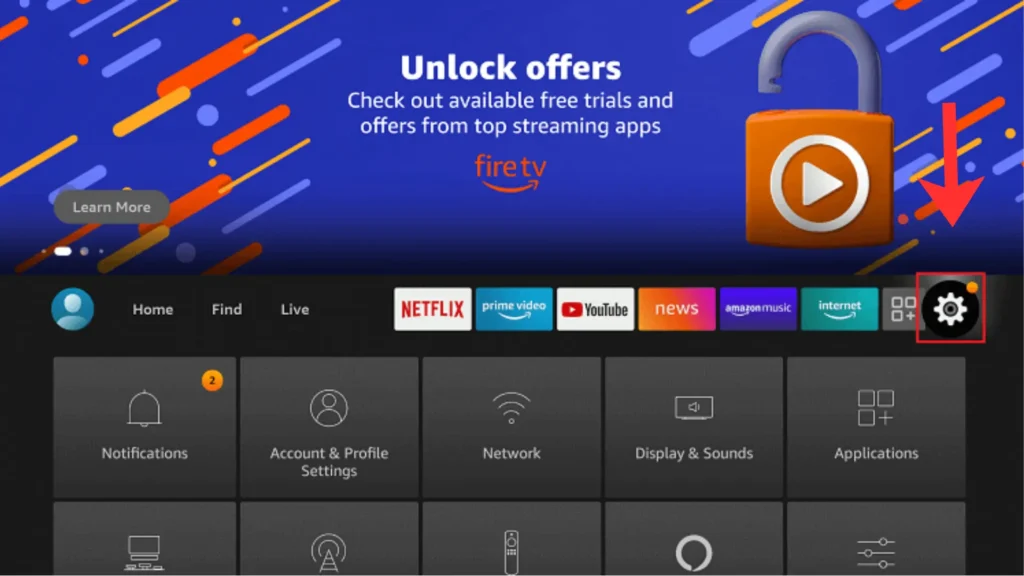
1. Open Settings
From your Firestick home screen press the Settings gear icon at the top right.
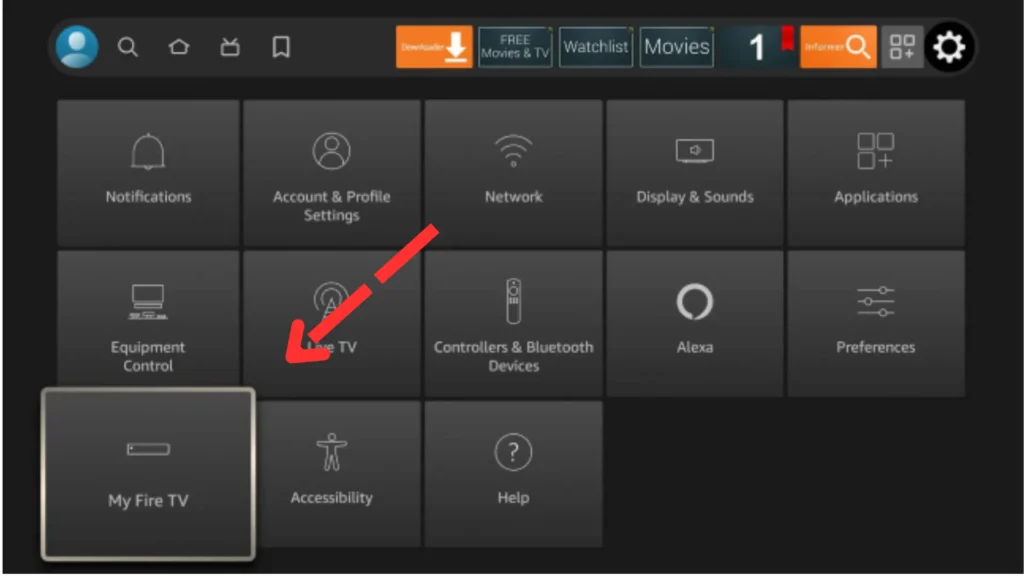
2. Go to My Fire TV
Inside Settings scroll down and select My Fire TV.
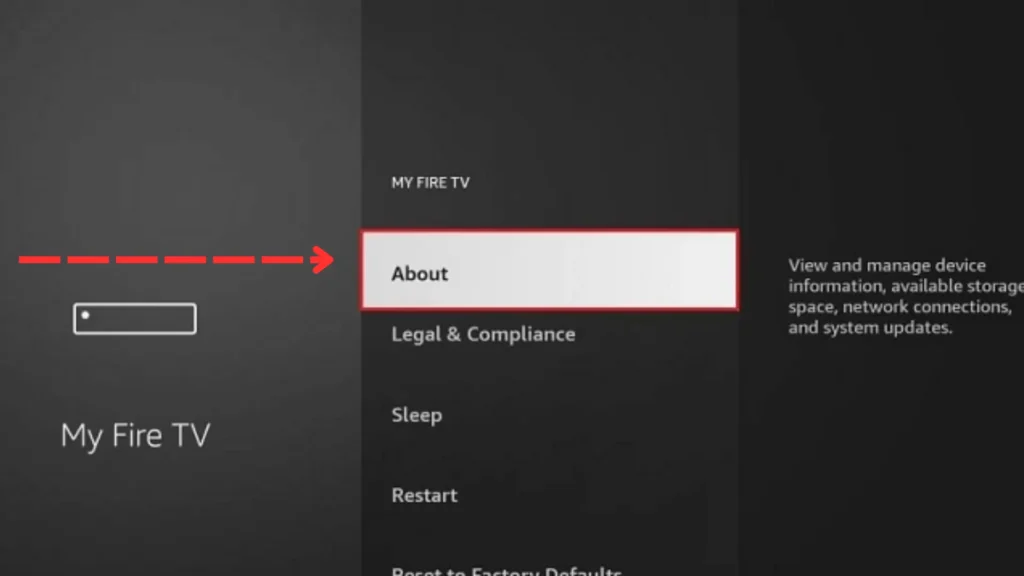
3. Open About
Inside My Fire TV select About at the top of the list.
4. Unlock Developer Options
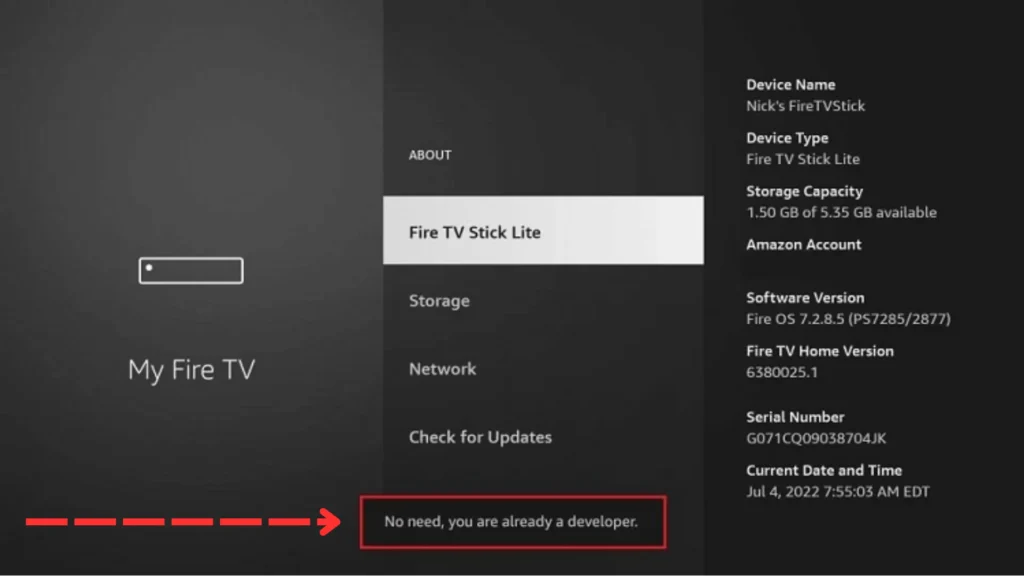
Select Fire TV Stick (your device name) and press the select button on your remote 7 times quickly until you see the message “No need, you are already a developer.”
5. Open Developer Options
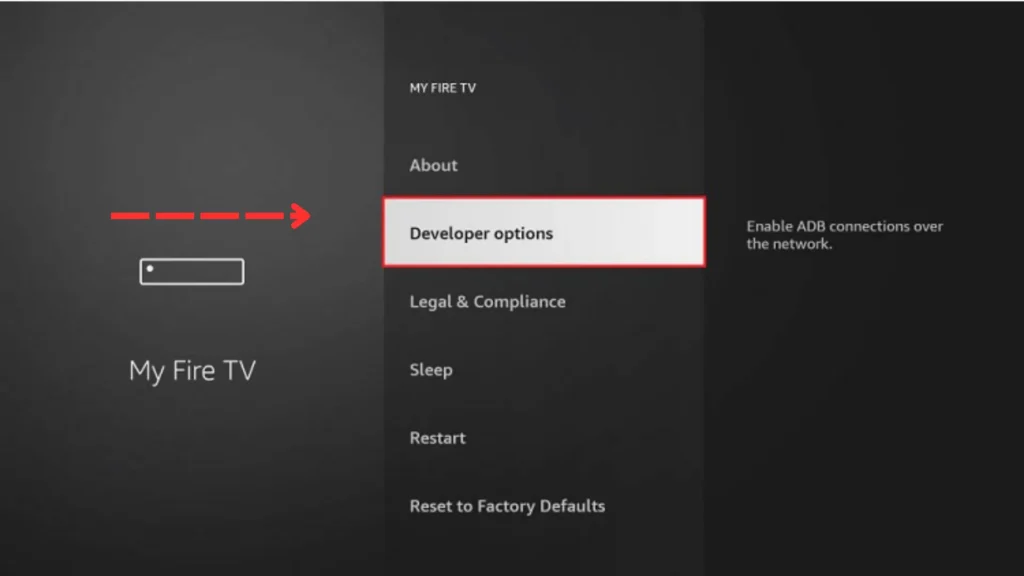
Go back to My Fire TV. Developer Options now appears in the menu. Select it.
6. Enable Install Unknown Apps
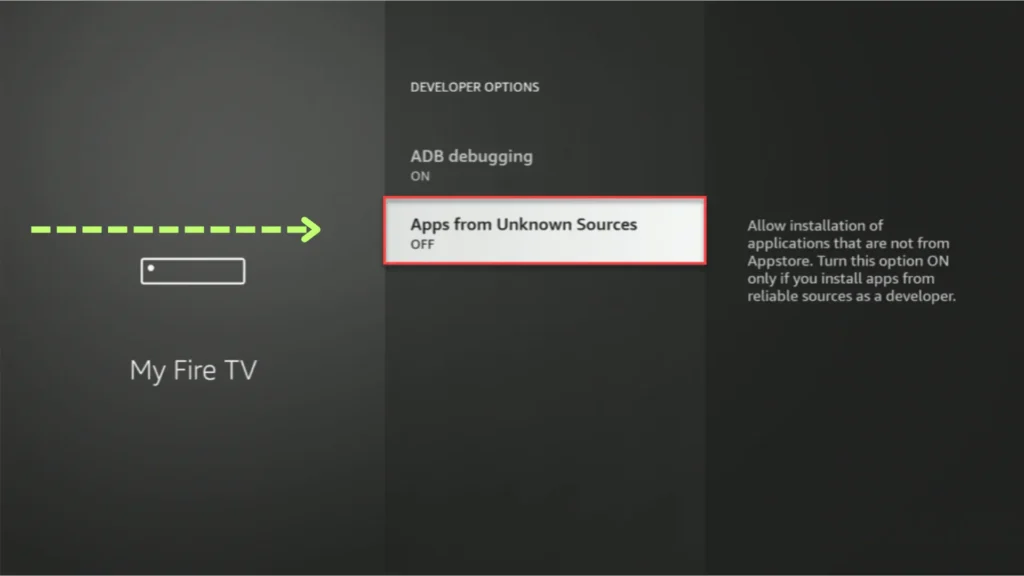
Inside Developer Options select Install Unknown Apps and turn it ON for Downloader.
7. Install Downloader
- Go back to the Firestick home screen.
- Search for Downloader in the Amazon App Store.
- Install the free official Downloader app and open it.
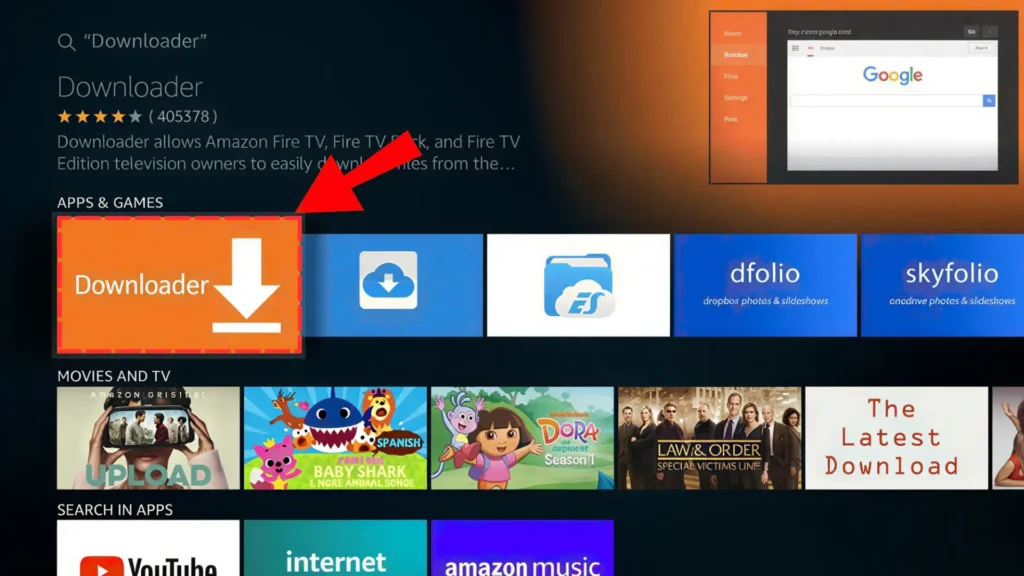
8. Download and Install MovieBox
- Open Downloader on your Firestick.
- Tap the URL field and type moviboxapk.com.
- Tap Go on your remote.
- Your site opens inside Downloader.
- Tap the Download button you see on the page.
- Wait for the APK to finish downloading.
- Tap Install when the installation screen appears automatically.
- Tap Done when finished.
9. Open MovieBox
- Press the Home button on your Firestick remote.
- Scroll to Your Apps and Channels.
- Find MovieBox in the list and open it.
- Start streaming immediately without creating an account.
MovieBox Pro has two install methods on Firestick:
Method 1: Amazon App Store (easiest)
- Open the Amazon App Store on your Firestick.
- Search for MovieBox Pro.
- Tap Download and install directly, no sideloading needed.
Method 2: Downloader APK
- Follow the same Downloader steps from the section above.
- Use the MovieBox Pro APK URL from our MovieBox Pro download page instead.
- Install and open the app.
After installing, log in with Google or use the code login method. For VIP access you need an invitation code. Read our MovieBox Pro invitation code guide for how to get one.
Open MovieBox Pro on your Firestick and tap Login on the opening screen. Three login options appear:
- Google Login: Select Login with Google, navigate to your Gmail account using Mouse Toggle and tap Select. Instant access with no password typing needed.
- Email Login: Enter your email and password using the on-screen keyboard.
- Code Login: Tap Login with Code, go to movieboxpro.app on your phone or PC browser, log in there and enter the sync code that appears into the Firestick app.
The code login method is the easiest on Firestick because it avoids typing long passwords with the remote. Log in on your phone once and enter a short code on the TV.
If you already have MovieBox or MovieBox Pro on your Android phone you can cast it to your Firestick without going through the full install process.
- Make sure your phone and Firestick are on the same WiFi network.
- Open MovieBox on your Android phone and play any title.
- Tap the Cast icon in the player controls.
- Select your Firestick from the list.
- The video plays on your TV screen controlled from your phone.
This is the fastest method if you only want occasional big screen viewing. For daily TV use the direct install method gives a better experience because you use the Firestick remote instead of depending on your phone battery.
MovieBox was built for touchscreens. The Firestick remote cannot tap certain parts of the app interface without Mouse Toggle. This is the most common frustration new Firestick users hit after installing.
Mouse Toggle creates an on-screen cursor you control with the Firestick remote, solving this completely.
- Search for Mouse Toggle in the Downloader URL field and install it the same way you installed MovieBox
- Open Mouse Toggle from your apps list before opening MovieBox
- A small cursor appears on screen
- Use the directional pad on your Firestick remote to move the cursor and the select button to tap
You only need to run Mouse Toggle once before each MovieBox session. After that the app works exactly like using it on a touchscreen phone.
MovieBox apk does not update automatically on Firestick. When a new version is available download the latest APK URL from this page, open Downloader, enter the new URL and install it directly over your existing version without uninstalling first. Your account and watchlist stay intact through the update.
Check this page regularly for new version releases. Outdated versions are the number one cause of MovieBox stopping on Firestick.
MovieBox and MovieBox Pro work on all current Amazon Firestick and Fire TV devices. The Fire TV Stick 4K and above give the best experience for HD and 4K streaming.
| Device | Performance |
| Fire TV Stick 4K Max | Best performance, fastest loading |
| Fire TV Stick 4K | Excellent, 4K content plays smoothly |
| Fire TV Cube | Best of all, fastest processor |
| Fire TV Stick 3rd Gen | Good, occasional buffering on 4K |
| Fire TV Stick Lite | Works, slower load times |
| Fire TV Stick 2nd Gen and older | Works but may lag on HD content |
Conclusion
MovieBox on Firestick gives you free HD streaming on your TV in under 5 minutes. Download using Downloader, install Mouse Toggle for smooth navigation and you are watching immediately. If anything stops working check our MovieBox not working guide for Firestick specific fixes. Want MovieBox Pro with VIP features? Read our Movie Box Pro guide for the full setup.